What these videos are for
The goal is to collect first-person video of everyday household activities in real residential environments. These videos are used to train humanoid robots and AI systems to understand and replicate household tasks.
Where you record
The recording environment must be a home with modern appliances and accessories. It can be your own home or a friend's or family member's, as long as it meets the requirements.
- Kitchen, with modern appliances and visible utensils.
- Bedroom, tidy, with bed linen and furniture.
- Living room, with furniture, decorative objects, sofas.
- Bathroom, with hygiene products and accessories.
How to mount your phone
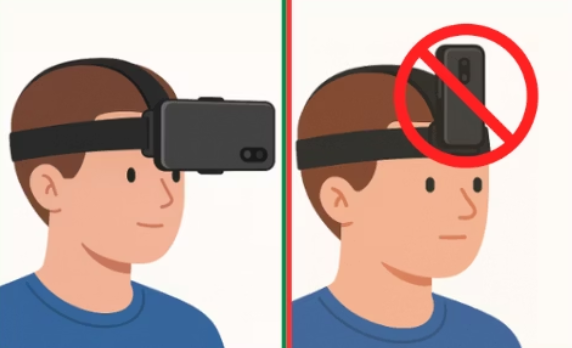
The phone must be mounted on your head with a head mount strap, at forehead or eye level, with the camera pointing downward approximately 45 degrees.
- Smartphone on head mount strap, at forehead or eye level.
- Camera pointing downward, approximately 45° angle.
- Arms and hands fully visible, at all times during the activity.
- DO NOT hold the phone with your hand — both hands must be free.
- DO NOT rest the phone on a surface — it must always be on your head.
Camera settings
| Parameter | Requirement | |
|---|---|---|
| Resolution | 1920×1080 (Full HD) minimum. | Required |
| Frame rate | 30 FPS minimum (60 FPS recommended). | Required |
| Orientation | Horizontal (Landscape), NEVER vertical. | Rejected if vertical |
| Zoom | 0.5× or 0.6×, wide field of view. | Required |
| Recording mode | Normal, no slow motion. | Rejected if slow-mo |
| Editing | No filters, cuts or effects — raw video only. | Rejected if edited |
Keep your hands in frame
- Position the camera slightly downward to keep your hands visible when interacting with objects.
- Make sure your arms and hands are visible throughout the entire task.
- It's acceptable for only one hand to be visible if the task only requires one.
- You can move your head naturally when walking or changing rooms.
- No sudden or jerky movements — the video must be smooth and natural.
- Do not block the camera with your body or clothing.
Capture the full action
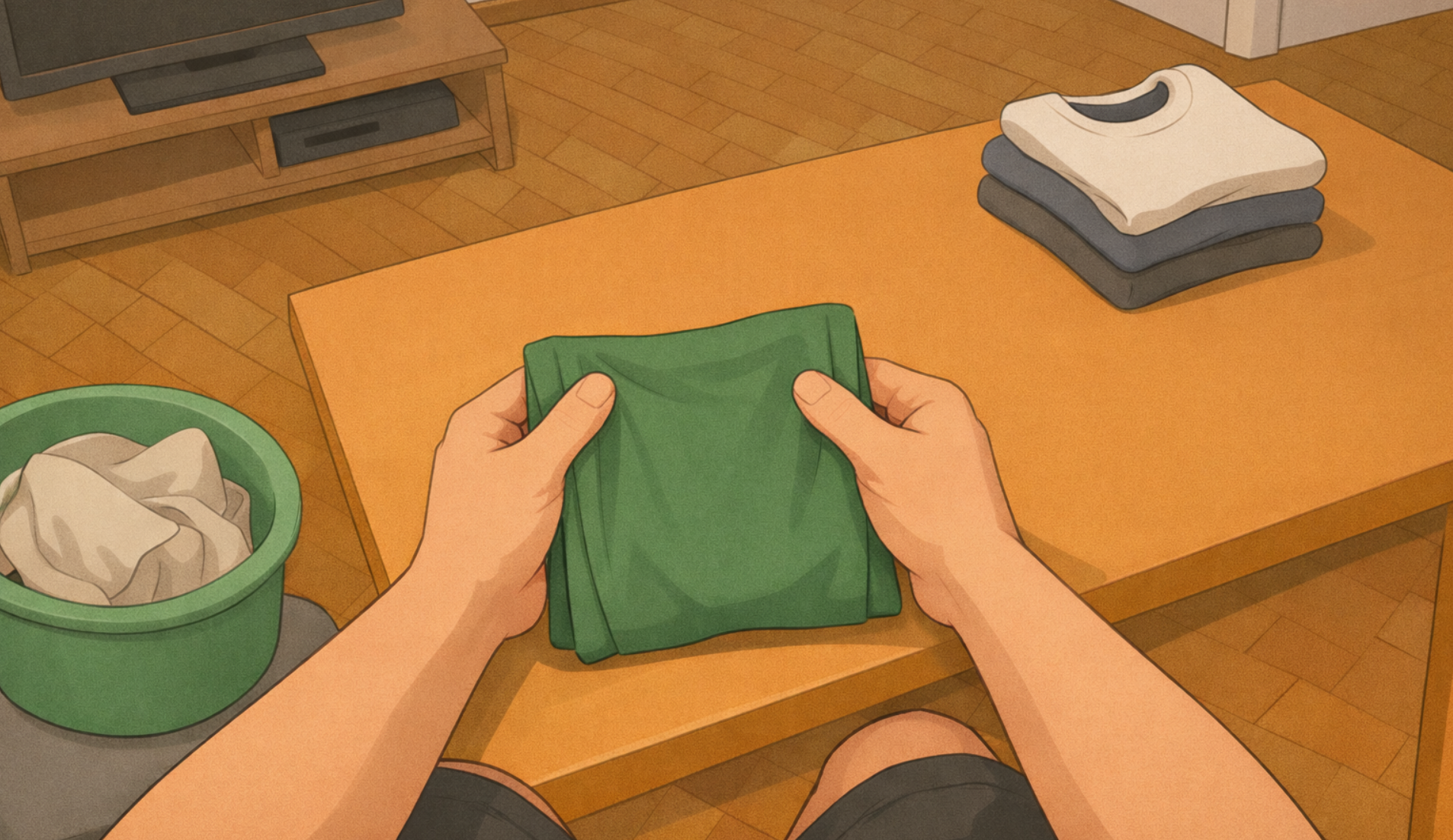
When you introduce an object during recording, make sure to capture the full interaction. Each action must include the following complete sequence:
Accepted and unaccepted lighting conditions
- Bright lighting, strong natural or artificial light.
- Low lighting, dim but not total darkness.
- High contrast, combination of light and shadows.
- Flickering lights — do not record under flickering lights.
- Overexposure — avoid completely white, washed-out areas.
- Extreme darkness — if your hands aren't clearly visible, it won't work.
Videos must be raw
Videos must be unprocessed recordings. Any modification after recording is grounds for automatic rejection.
- Do not trim clips — the video must be continuous from start to finish.
- Do not add filters — no beauty, color, or any other type of filter.
- Do not apply color correction — no brightness or contrast adjustments.
- Do not add text, overlays or effects — the video must be completely clean.
Errors that won't be forgiven
Any of the following errors results in automatic rejection of the video, with no possibility of appeal or payment:
| Error | Description |
|---|---|
| Under 4 minutes | Do not submit anything shorter under any circumstances. |
| Inactivity | No pauses longer than 3 seconds — always in motion performing the task. |
| Face visible | Any face — yours, a reflection, or in a photo — is immediate rejection. |
| Personal documents | Do not show ID, phone with personal data, emails or numbers. |
| Vertical recording | Any video in portrait mode is automatically rejected. |
| Slow motion | Slow-motion videos are not acceptable under any circumstances. |
| No head mount | If the phone is suspected to have been held by hand or rested on a surface. |
| Wrong zoom | If zoom is at 1× or higher and hands and arms aren't clearly visible. |
| Upside-down video | Videos recorded upside down are rejected outright. |
| Blurry video | Out-of-focus clips or clips with significant blur are not acceptable. |
| Edited video | Any cut, filter, effect or post-recording modification. |
How to start recording

How we pay you
Only videos approved (Ok in QC) within the cycle's window are paid. The cutoff is 2 days before payday so QC has time to review.
- May 20 payday → covers videos approved between May 4 and May 18
- June 5 payday → covers videos approved between May 19 and June 3
- June 20 payday → covers videos approved between June 4 and June 18
If your video is approved after the cutoff, it's not lost — it falls into the next cycle.
- You'll be paid in USDT (Tether stablecoin, 1 USDT = 1 USD) on the BEP-20 (BNB Chain) network — fast confirmations, fees under $0.30.
- Create a wallet that supports BEP-20 — Binance, Trust Wallet, Coins.ph, or any wallet that supports BNB Chain. Free to set up.
- Give us your wallet address — it starts with
0xand is exactly 42 characters. On Binance: Deposit → USDT → choose BEP-20 network → copy the address. - You'll receive your USDT directly to that wallet on each payday and can convert to your local currency inside the wallet/exchange app.